Best WiFi Strength Tester: Check Your Signal Quality Online for Free
In today’s digital age, a strong and reliable WiFi connection is essential for everything from streaming high-definition videos to working remotely. But how do you know if your WiFi signal is up to par? Enter the WiFi Strength Tester – a free, browser-based tool that provides instant insights into your network’s performance. In this comprehensive guide, we’ll explore what makes this tool stand out, how to use it, and tips to improve your WiFi signal strength.
Whether you’re troubleshooting slow internet speeds or just curious about your connection quality, this WiFi strength tester is your go-to solution for accurate, real-time diagnostics.
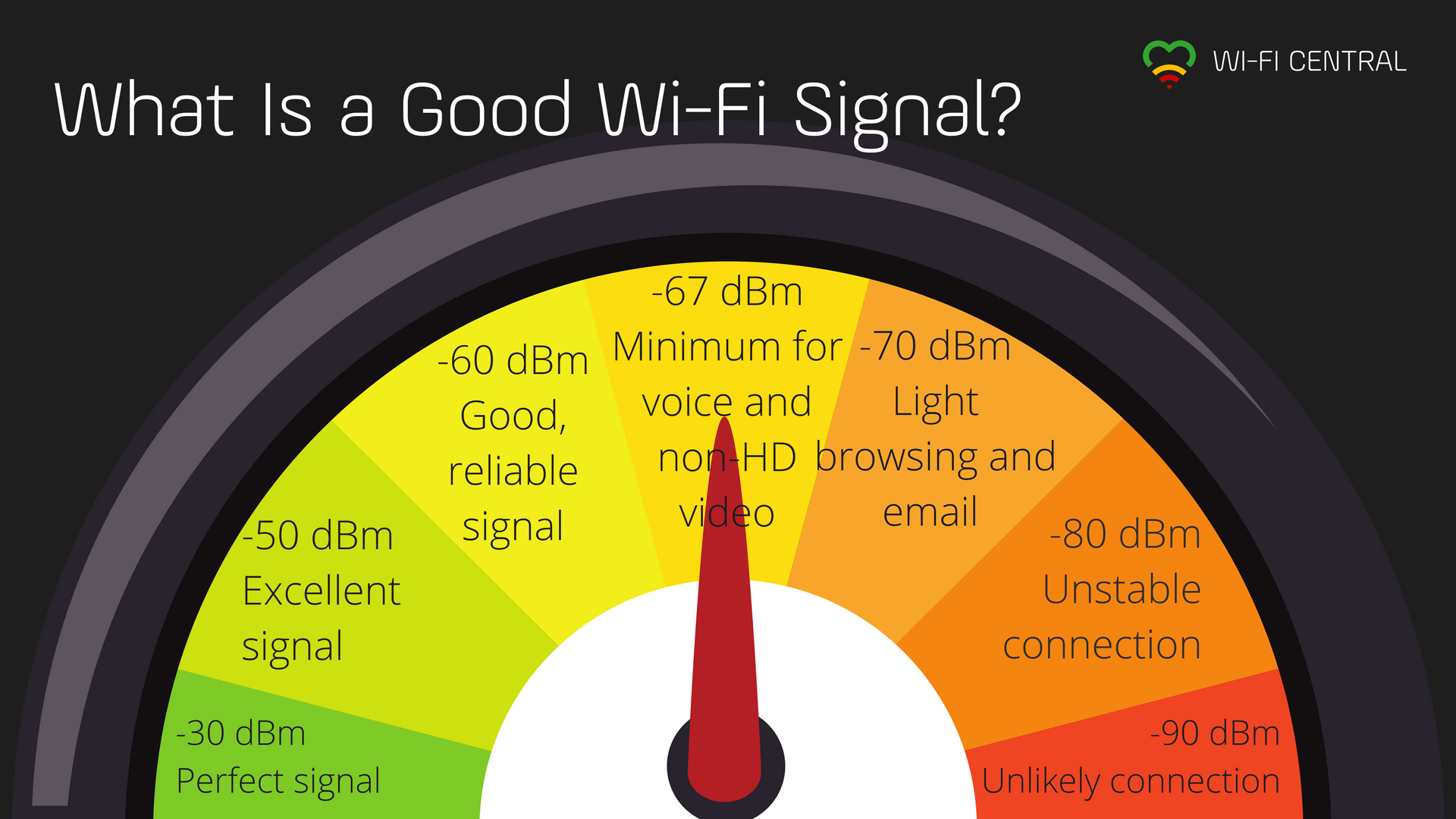 Image: Understanding WiFi signal strength levels with a visual meter.
What is WiFi Signal Strength and Why Does It Matter?
WiFi signal strength refers to the quality of the wireless connection between your device and the router. It’s measured in terms like “Excellent,” “Good,” or “Poor,” and is influenced by factors such as distance, obstacles, and interference. Unlike internet speed (measured in Mbps), signal strength focuses on the reliability of the wireless link.
A strong signal ensures faster data transfer, lower latency, and fewer dropouts. Poor signal strength can lead to buffering, lag in online gaming, or interrupted video calls. Regularly testing your WiFi strength helps identify issues early and optimize your setup for peak performance.
Key factors affecting WiFi signal:
- Distance from router: Closer is better.
- Obstacles: Walls, floors, and furniture can weaken the signal.
- Interference: From microwaves, Bluetooth devices, or neighboring networks.
Introducing the MICROQIT WiFi Strength Tester
The WiFi Strength Tester by MICROQIT is an online tool that analyzes your internet connection in real-time without any downloads or installations. It uses advanced browser APIs to measure key metrics, providing a dashboard with instant results.
Key Features of the WiFi Strength Tester
- Real-Time Monitoring: Get immediate feedback on signal quality, connection status, type (WiFi, 4G/5G, Ethernet), download speed, and response time.
- Comprehensive Diagnostics: Measures latency, stability, and performance classification (e.g., Excellent for <50ms latency, ideal for gaming).
- Device Compatibility: Works on all browsers and devices, including Windows PCs, mobiles, and tablets.
- Privacy-Focused: No data collection or transmission – all testing happens in your browser.
- Free and Easy: No sign-ups required; just load the page for results.
This tool differentiates itself by offering browser-based testing that’s accurate and user-friendly, making it perfect for both tech novices and experts.
How to Use the WiFi Strength Tester
Using the tool is straightforward:
- Visit https://microqit.com/wifi-strength-tester.
- The tool automatically detects and analyzes your connection.
- View metrics like:
- Signal Quality: Good/Strong/Weak.
- Download Speed: e.g., 10 Mbps.
- Response Time: e.g., 154 ms.
- Test on different devices or locations for comprehensive insights.
For Windows users: Check the system tray icon or Settings > Network & Internet. For mobiles: Look at the WiFi icon in Settings.
Test whenever you notice issues like slow loading or disconnections to pinpoint problems.
Understanding WiFi Standards and Bands
Modern WiFi uses various standards, each offering different speeds and ranges:
 Image: Comparison of IEEE WiFi standards, including speeds and frequencies.
- WiFi 6 (802.11ax): Up to 9.6 Gbps, supports 2.4/5 GHz for better efficiency.
- WiFi 5 (802.11ac): Up to 3.5 Gbps on 5 GHz.
- 2.4 GHz vs. 5 GHz: 2.4 GHz offers longer range but slower speeds; 5 GHz is faster with less interference but shorter range.
Upgrade to newer standards for improved performance.
Tips to Improve Your WiFi Signal Strength
If your test reveals weak signals, try these optimizations:
 Image: Good vs. bad router placement for optimal WiFi coverage.
- Optimal Router Placement: Position centrally, elevated, and away from walls or metal objects.
- Reduce Interference: Avoid microwaves, cordless phones, and Bluetooth devices.
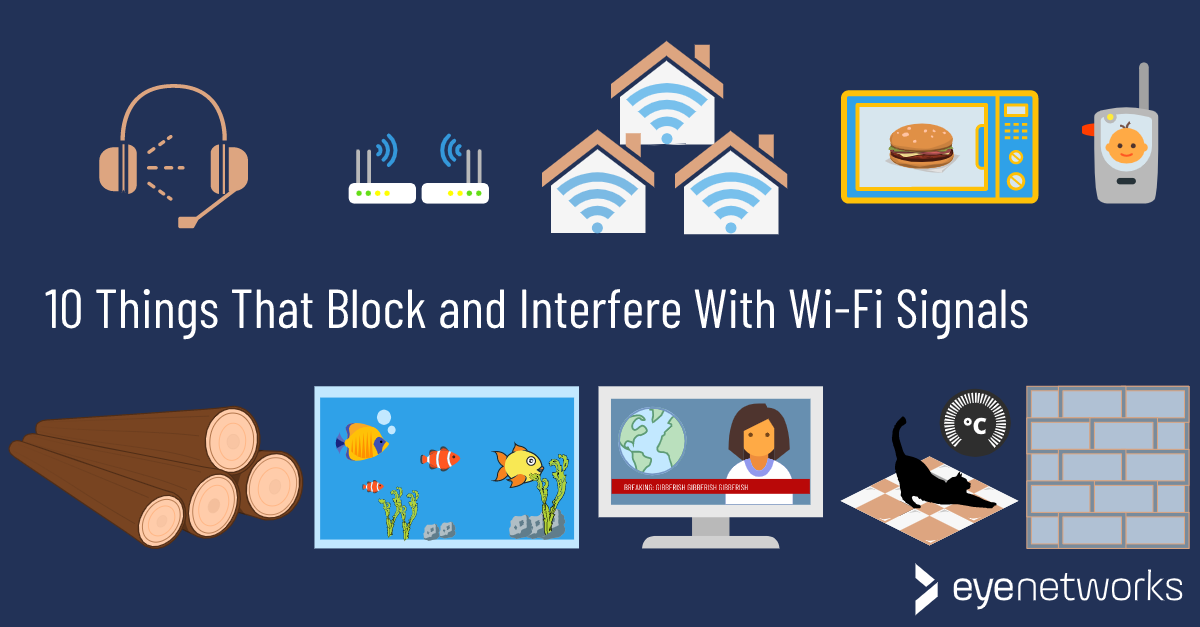 Image: Common household items that interfere with WiFi signals.
- Switch Bands/Channels: Use 5 GHz for speed; change channels to avoid crowded ones.
- Update Firmware: Keep your router updated for security and performance.
- Use Extenders or Mesh Networks: For larger homes.
- Security Best Practices: Use WPA3 encryption and strong passwords.
Regular testing with the WiFi strength tester will help monitor improvements.
Conclusion
The MICROQIT WiFi Strength Tester is an indispensable tool for anyone looking to optimize their internet connection. With its easy-to-use interface and detailed insights, you can quickly diagnose and fix network issues, ensuring a seamless online experience.
Ready to check your WiFi signal strength? Head over to the WiFi Strength Tester now and take control of your network!
If you found this guide helpful, share it with friends or leave a comment below. For more tech tips, subscribe to our blog.