Master Color Harmony: Unlock Stunning Palettes with MicroQIT's Color Wheel Generator
In the vibrant world of design, color is king. Whether you’re a web designer crafting user interfaces, a graphic artist developing brand identities, or an illustrator bringing stories to life, choosing the right color palette can make or break your project. Enter MicroQIT’s Color Harmony Generator – a powerful, browser-based tool that simplifies color theory and helps you create professional-grade palettes in seconds.
If you’ve ever struggled with “What colors go well together?” or “How do I create a balanced color scheme?”, this tool is your ultimate solution. In this comprehensive guide, we’ll explore the features of MicroQIT’s color wheel, dive into color theory fundamentals, and show you how to leverage it for real-world applications. By the end, you’ll be equipped to elevate your designs and drive more engagement.
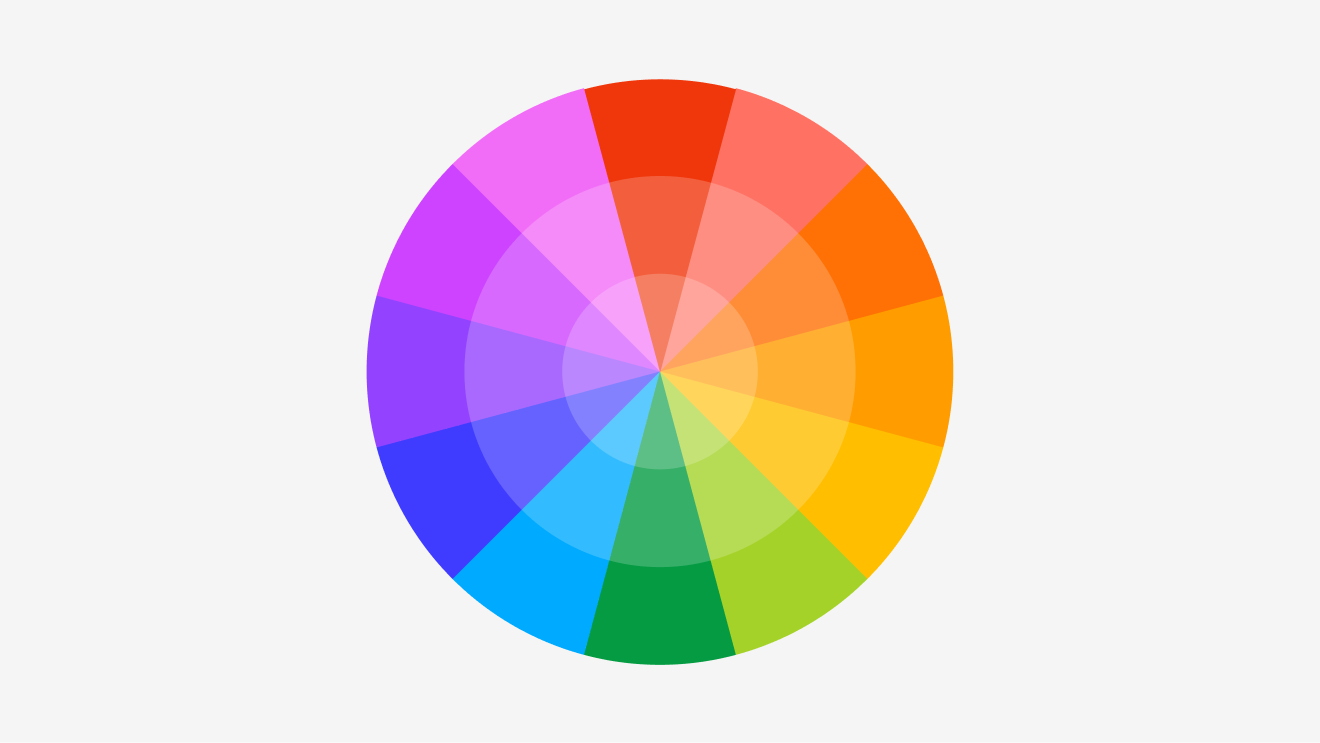
Image source: Figma Color Wheel – An example of an interactive color picker similar to MicroQIT’s tool.
What is Color Harmony and Why Does It Matter?
Color harmony refers to the pleasing arrangement of colors based on their relationships on the color wheel. It’s the science behind why some color combinations pop while others clash. Rooted in principles discovered by Sir Isaac Newton in 1666, color theory helps designers create visually appealing and emotionally resonant work.
Poor color choices can lead to low user engagement, while harmonious palettes can increase conversion rates by up to 20% in web design (according to industry studies). MicroQIT’s tool makes mastering this easy, generating schemes like:
- Complementary Colors: High-contrast pairs for bold impacts, like red and green.
- Triadic Colors: Balanced trios spaced 120° apart for vibrant, versatile designs.
- Analogous Colors: Adjacent hues for serene, cohesive looks.
- Tetradic Colors: Four-color sets for complex, dynamic compositions.
Understanding these can transform your projects from amateur to pro.
Discover MicroQIT’s Color Harmony Generator: Features That Shine
MicroQIT’s Color Wheel Generator is more than just a picker – it’s a full-fledged harmony creator. Here’s what sets it apart:
- Interactive Color Wheel: Click or drag to select any base color instantly. No downloads needed – it works on any device.
- Real-Time Harmony Generation: Watch complementary, triadic, analogous, and tetradic schemes update live.
- Multiple Color Formats: Get values in HEX, RGB, HSL, and HSV for seamless integration into tools like Adobe Suite or CSS.
- One-Click Copy: Easily grab codes for your projects.
- Educational Insights: Built-in explanations of each scheme, plus color theory basics.
- Privacy-Focused: No data collection, fully browser-based.
Perfect for beginners and pros alike, it’s designed for web design, UI/UX, branding, and art.

Image source: The Color Wheel Company – A labeled color wheel illustrating harmony principles.
How to Use the MicroQIT Color Wheel: Step-by-Step Guide
Getting started is effortless. Head over to MicroQIT’s Color Harmony Generator and follow these steps:
- Select Your Base Color: Click on the interactive wheel to pick a hue. Try #FF5733 (a vibrant orange-red) as an example.
- View Harmonies: Instantly see generated schemes:
- Complementary: #FF5733 and #33C4FF (high-contrast blue).
- Triadic: #FF5733, #33FF87 (green), #8733FF (purple).
- Analogous: #FF8733, #FF5733, #FF3387 (warm pinks and oranges).
- Tetradic: Build on complementary pairs for variety.
- Copy Values: Use HEX for web, RGB for digital art, or HSL/HSV for precise adjustments.
- Experiment: Generate random colors or tweak for accessibility.
Pro Tip: For web design, use analogous schemes for backgrounds and complementary for CTAs to boost conversions.

Image source: Canva Colors – Visualizing a tetradic harmony on the wheel.
Color Theory Fundamentals: A Quick Primer
To maximize the tool, grasp the basics:
- Primary Colors: Red, blue, yellow (or RGB in digital).
- Secondary & Tertiary: Mixes creating the full spectrum.
- Color Models:
- HEX: Web-friendly codes like #FF5733.
- RGB: Additive light mixing (0-255).
- HSL: Hue, saturation, lightness – intuitive for humans.
- HSV: Similar but focuses on value.
HSL vs. HSV? HSL is great for balanced adjustments; HSV shines in pickers.
For deeper learning, check out this engaging Color Theory Tutorial Video on YouTube.
Practical Applications: From Web Design to Branding
See the tool in action:
- Web & UI/UX: Use triadic schemes like Google’s (red, yellow, blue) for balanced sites.
- Brand Identity: Analogous colors create calm, trustworthy vibes (e.g., blues for tech brands).
- Art & Illustration: Tetradic for depth in compositions.
Example: A fitness app might use energetic orange (#FF5733) with complementary blue for buttons – driving user action.
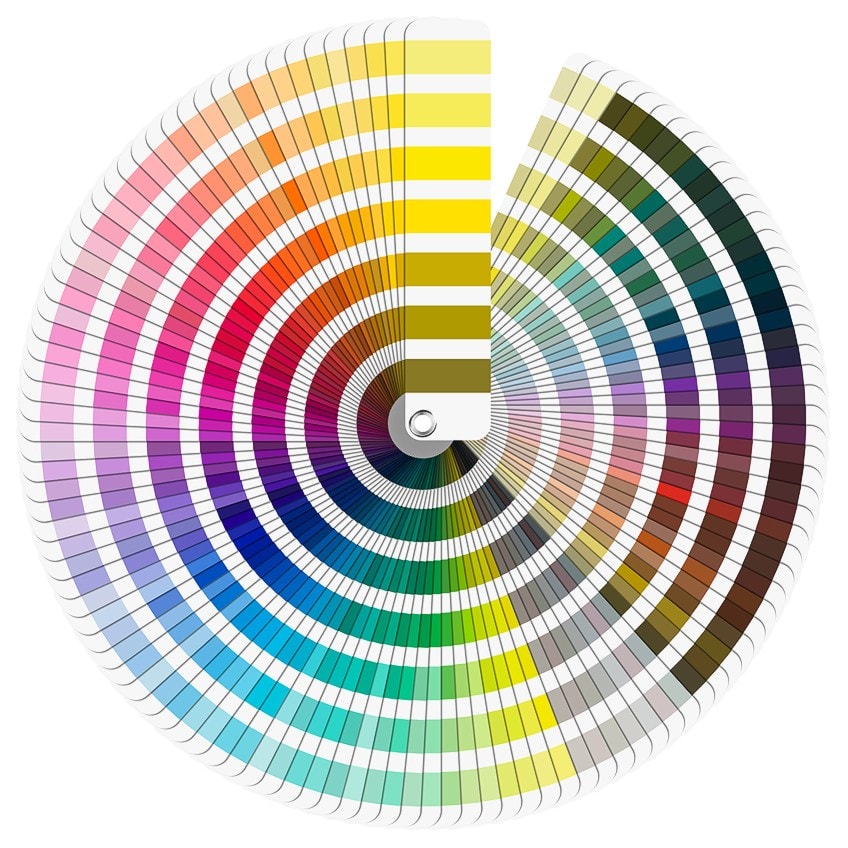
Image source: Art in Context – A detailed color wheel chart for reference.
Why Choose MicroQIT’s Tool? Boost Your Workflow Today
Unlike clunky downloads or paid software, MicroQIT offers instant, free access with advanced features. It’s SEO-optimized for designers searching “triadic color scheme generator” or “online color wheel,” helping you find it fast.
Ready to revolutionize your color game? Visit MicroQIT’s Color Harmony Generator now and start creating. Share your palettes in the comments below – what’s your favorite scheme?
Frequently Asked Questions
What is the best color harmony for web design?
Complementary for high contrast, analogous for harmony.
How do I copy colors from the tool?
Just click the copy button next to each value.
Is the tool free?
Yes, fully free and browser-based.
For more FAQs, check the tool directly.
This blog post is optimized with targeted keywords, engaging headings, visual elements, and calls-to-action to drive traffic to the MicroQIT page. Embed the video link for interactivity, and images enhance readability.