Ultimate Guide to Creating Professional Email Signatures with MicroQIT's Free Generator in 2025
In today’s digital-first world, your email signature is more than just a sign-off—it’s a powerful branding tool and digital business card. Whether you’re a corporate professional, small business owner, or creative freelancer, a well-designed email signature can enhance your credibility, promote your brand, and make it easier for recipients to connect with you. If you’re searching for the best free email signature generator, look no further than MicroQIT’s Email Signature Generator. This tool allows you to create professional, HTML-based signatures compatible with all major email clients like Gmail, Outlook, and Apple Mail.
In this comprehensive guide, we’ll explore why professional email signatures matter, dive into the features of MicroQIT’s tool, provide a step-by-step tutorial, showcase examples, and even include a video tutorial for visual learners. By the end, you’ll be ready to elevate your email game and boost your page views through better networking.
Why Professional Email Signatures Matter
A professional email signature isn’t just about sharing contact info—it’s about leaving a lasting impression. Here’s why you should invest time in creating one:
- Builds Credibility: A polished signature signals professionalism and attention to detail.
- Reinforces Brand Identity: Incorporate your company logo, colors, and tagline for consistent branding.
- Facilitates Easy Contact: Include clickable links for phone, email, website, and social media.
- Marketing Opportunity: Add calls-to-action like “Schedule a Call” or links to your latest blog post.
- Mobile-Friendly: With over 50% of emails opened on mobile, responsive designs are essential.
Without a strong signature, you risk looking unprofessional or missing out on connections. Tools like MicroQIT’s free email signature generator make it simple to avoid common pitfalls and create signatures that work seamlessly across devices.
Introducing MicroQIT’s Email Signature Generator
MicroQIT’s Email Signature Generator is a completely free online tool that helps you design beautiful, customizable email signatures in minutes. Unlike paid alternatives, it has no watermarks, subscriptions, or limitations—perfect for individuals and businesses alike. All processing happens locally in your browser, ensuring 100% privacy and security with no data stored or shared.
This tool stands out for its user-friendly interface, real-time previews, and compatibility with email clients. Whether you’re creating a business email signature or a personal one, it’s optimized for SEO-friendly elements like clickable links that can drive traffic to your site.
Key Features of MicroQIT’s Free Email Signature Tool
MicroQIT packs powerful features into its simple design:
- Customizable Templates: Choose from Modern, Classic, Minimal, or Bold styles to match your professional vibe.
- Contact Information Fields: Easily add your name, job title, company, email, phone, website, and address.
- Social Media Integration: Include links to LinkedIn, Twitter, and more with eye-catching icons.
- Branding Options: Upload your company logo or headshot (under 100KB) and select accent colors for brand consistency.
- Real-Time Preview: See changes instantly as you edit.
- HTML Code Output: Copy clean, table-based HTML code that’s mobile-optimized and compatible with all clients.
- Unlimited Free Use: No costs or restrictions for personal or commercial purposes.
These features make it the go-to free email signature generator for professionals in 2025.
How to Use MicroQIT’s Email Signature Generator: Step-by-Step Tutorial
Creating your signature is straightforward. Head over to MicroQIT’s Email Signature Generator and follow these steps:
- Enter Your Information: Fill in your full name, job title, company, email, phone, and website. Add optional social media links like LinkedIn or Twitter.
- Customize the Design: Select a template (e.g., Modern for a sleek look), choose an accent color, and decide on elements like icons or a logo.
- Preview Your Signature: Watch the real-time preview update. Ensure it looks great on both desktop and mobile.
- Copy the HTML Code: Click “Copy HTML” to grab the code.
- Install in Your Email Client: Paste it into your email settings (more on this below).
It’s that easy! No design skills required, and the result is a professional email signature ready to impress.
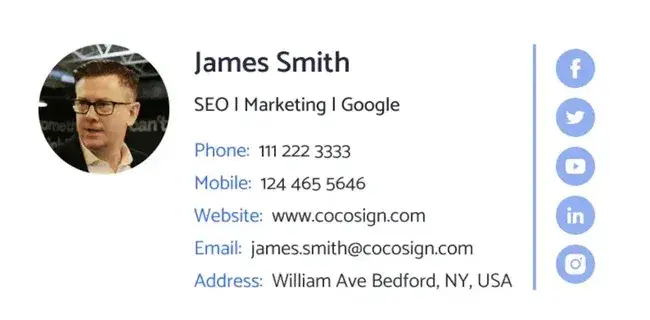 Example of a clean, professional email signature with social icons.
Email Signature Examples by Industry
To inspire you, here are tailored examples using MicroQIT’s tool. These can be created directly on the generator page.
- Corporate Professional: Full name, title, company, contacts, LinkedIn, and logo in a Classic template.
- Creative Professional: Bold colors, portfolio link, and social icons like Instagram in a Bold template.
- Small Business Owner: Business name, address, phone, and Facebook link in a Minimal design.
- Sales & Marketing: Call-to-action link, Twitter, and vibrant accents in a Modern template.
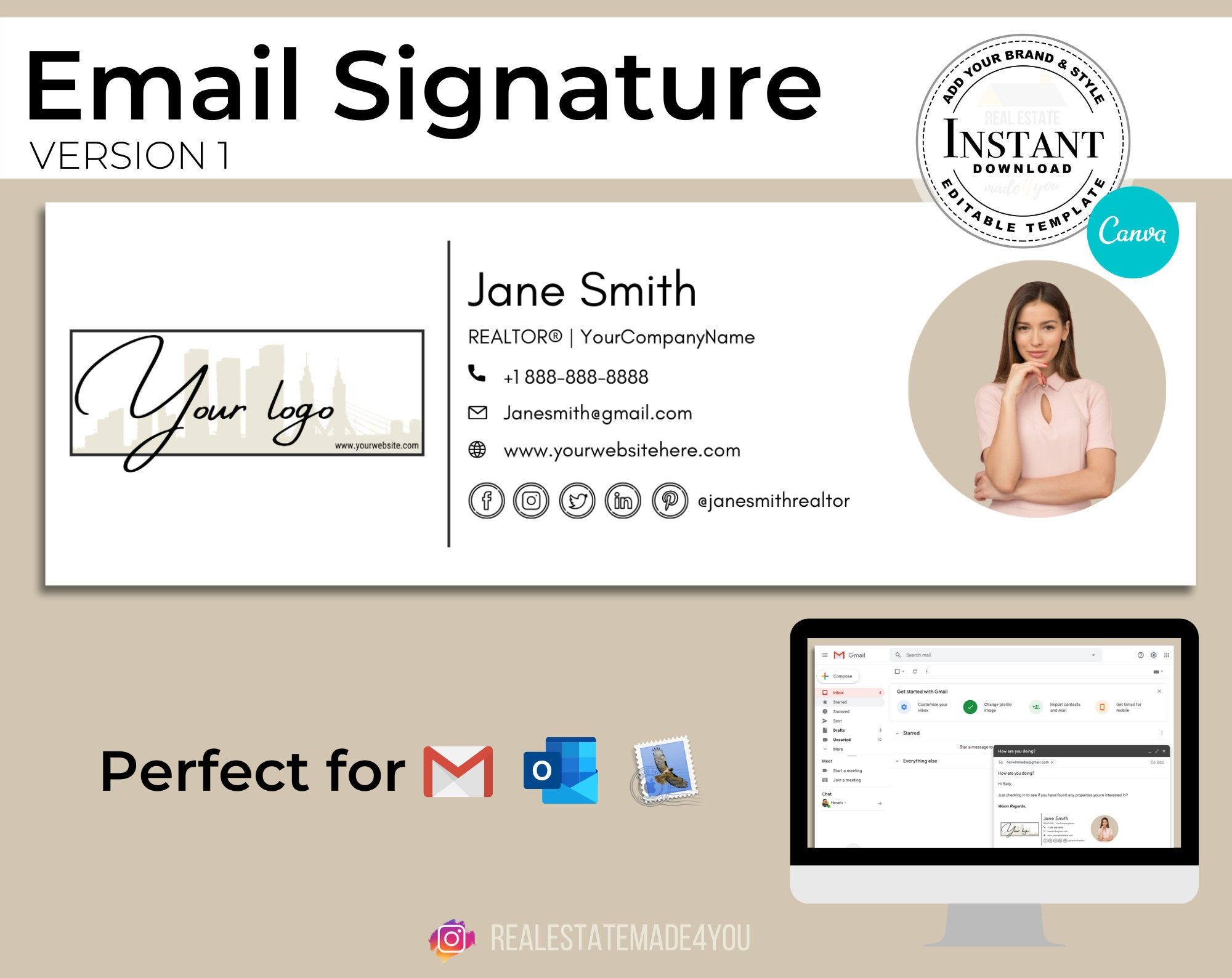 Stylish email signature with logo and photo for creative pros.
 Corporate CEO signature example with essential details.
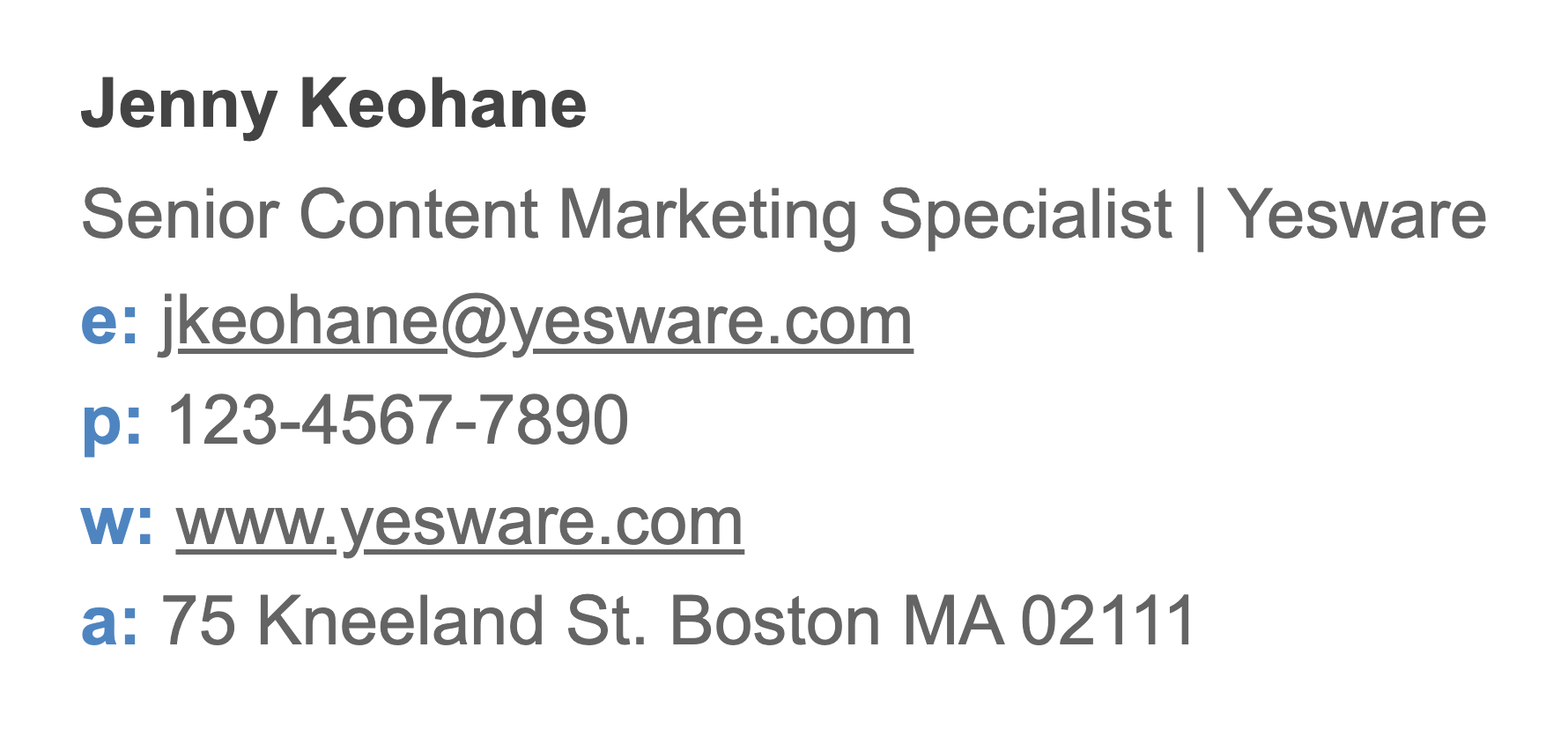 Simple yet effective signature for marketing specialists.
How to Install Your Email Signature in Popular Clients
Once you’ve generated your HTML code from MicroQIT, installation is quick. Here’s a handy table:
| Email Client | Installation Steps |
|---|---|
| Gmail | Go to Settings > See all settings > General > Signature > Create new > Paste HTML > Save Changes. |
| Outlook Desktop | File > Options > Mail > Signatures > New > Paste HTML > Set as default > OK. |
| Outlook Web | Settings > View all Outlook settings > Compose and reply > Email signature > Paste HTML > Save. |
| Apple Mail | Mail > Preferences > Signatures > Select account > Paste HTML > Save. |
| Yahoo Mail | Settings > More Settings > Writing email > Toggle on > HTML mode > Paste > Save. |
| Thunderbird | Tools > Account Settings > Select account > Attach signature from file (save HTML first) > OK. |
Pro tip: Test your signature by sending yourself an email to ensure it displays correctly.
Watch This Tutorial Video for Extra Guidance
For a visual walkthrough, check out this helpful YouTube tutorial on creating professional email signatures:
This video complements MicroQIT’s tool perfectly, showing design tips that you can apply directly.
Common Mistakes to Avoid When Creating Email Signatures
Don’t sabotage your efforts! Avoid these pitfalls:
- Overloading with info: Keep it to 4-6 lines.
- Large images: Optimize under 100KB.
- Inconsistent branding: Match your company’s style.
- Broken links: Always test clicks.
- Ignoring mobile: Use responsive designs like those from MicroQIT.
Conclusion: Elevate Your Emails Today
A professional email signature is a small change with big impact—boosting your brand, credibility, and connections. With MicroQIT’s free email signature generator, you can create one in minutes without any cost or hassle. Head over now, customize your signature, and start impressing your contacts. Share this guide if you found it helpful, and let us know in the comments what features you’d like to see next!
Ready to get started? Visit MicroQIT’s Email Signature Generator today and transform your emails.