Guide to Monitor Refresh Rates: What They Are, Why They Matter, and How to Check Yours
In today’s digital world, where gaming, video editing, and everyday computing demand seamless visuals, understanding your monitor’s refresh rate is essential. Whether you’re a competitive gamer chasing every millisecond or a professional seeking smoother workflows, refresh rate plays a pivotal role in your display’s performance. This comprehensive guide dives deep into what refresh rate means, how it impacts your experience, and practical tips to optimize it. For an instant check of your setup, head over to MicroQIT’s Refresh Rate Detector – a free tool that analyzes your display properties in seconds.
What is Monitor Refresh Rate?
Monitor refresh rate refers to how many times per second your screen updates the displayed image, measured in Hertz (Hz). For instance, a 60Hz monitor refreshes the image 60 times every second, while a 144Hz model does so 144 times. This metric is crucial for achieving fluid motion and reducing visual artifacts like blurring or tearing.
At its core, refresh rate determines the smoothness of on-screen actions. Higher rates mean more frequent updates, leading to a more responsive and immersive experience. It’s often paired with screen resolution to define overall display quality – think of resolution as the detail in a still image and refresh rate as the fluidity in motion.
Why does this matter? In fast-paced scenarios, such as scrolling through web pages or tracking enemies in games, a low refresh rate can make movements feel choppy. Upgrading to a higher Hz can transform your setup, making everything from cursor movement to video playback feel more natural.
How Does Refresh Rate Work?
Refresh rate operates through a continuous cycle driven by your graphics card and monitor. Here’s a step-by-step breakdown:
- Signal Generation: Your GPU (graphics processing unit) renders frames and sends them via a display cable like HDMI or DisplayPort.
- Vertical Sync (V-Sync): The monitor receives a synchronization signal to begin drawing the new frame.
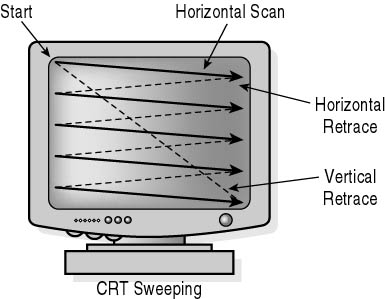
- Pixel Refresh: Pixels are updated row by row, from top to bottom, rebuilding the image.
- Cycle Repetition: This process repeats at the specified frequency – every 16.67 milliseconds for 60Hz, or just 6.94 milliseconds for 144Hz.
Modern technologies like NVIDIA’s G-Sync or AMD’s FreeSync enhance this by dynamically adjusting the refresh rate to match your GPU’s frame output. This eliminates issues like screen tearing (where frames mismatch) and stuttering, resulting in buttery-smooth visuals.
Understanding this mechanism helps explain why compatibility between your hardware components is key. For optimal performance, ensure your setup supports the desired rate without bottlenecks.

Benefits of Higher Refresh Rates
Investing in a higher refresh rate isn’t just for gamers – it elevates everyday computing. Key advantages include:
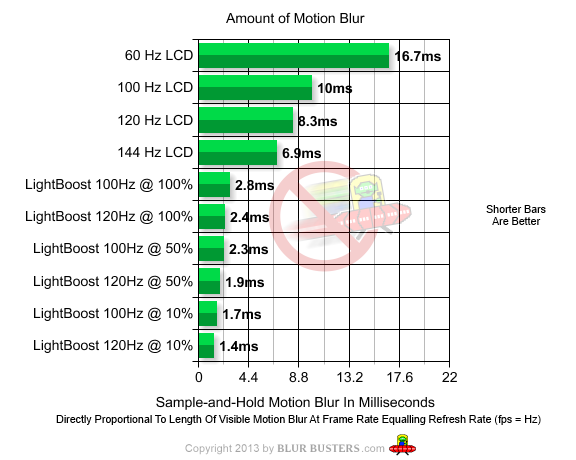
- Smoother Motion: Reduces blur in fast-moving content, making scrolling, animations, and videos feel lifelike.
- Improved Responsiveness: Critical for gaming, where higher Hz allows quicker reactions (e.g., spotting opponents faster in FPS games).
- Reduced Eye Strain: Fewer flickers and smoother transitions mean less fatigue during prolonged use, ideal for office work or editing.
- Enhanced Immersion: In video editing, higher rates provide precise frame navigation; in general browsing, they make interfaces feel more premium.
Real-world examples underscore these benefits. A competitive gamer on a 240Hz monitor gains about 12 milliseconds of reaction time over 60Hz, potentially turning the tide in matches. For daily users, jumping from 60Hz to 120Hz transforms mundane tasks like window dragging into seamless experiences.

Common Monitor Refresh Rates and Their Uses
Refresh rates vary by monitor type and purpose. Here’s a quick overview:
- 60Hz: Standard for office and basic use; sufficient for non-demanding tasks.
- 75Hz: Entry-level gaming and multimedia; offers a slight smoothness boost on budget setups.
- 120Hz: Ideal for casual gaming and smooth scrolling; common in mid-range displays.
- 144Hz: Popular for competitive gaming; provides noticeable fluidity without extreme costs.
- 165Hz: High-end option for premium gaming; balances performance and affordability.
- 240Hz: Professional esports level; minimizes latency for fast-paced action.
- 360Hz+: Elite tier for pros; maximizes responsiveness in tournaments.
Choosing the right rate depends on your hardware and needs. Gaming enthusiasts often opt for 144Hz or above, while professionals might prioritize 120Hz for productivity.
How to Check and Change Your Monitor’s Refresh Rate
Wondering about your current setup? It’s easy to verify and adjust. Follow these platform-specific steps:
On Windows:
- Right-click the desktop and select “Display settings.”
- Navigate to “Advanced display settings.”
- View or select your refresh rate from the dropdown.
- Apply changes and test for compatibility.
On macOS:
- Open the Apple menu and choose “System Preferences.”
- Click “Displays.”
- Hold the Option key and select “Scaled” to reveal refresh rate options.
- Choose your preferred rate.
For accurate detection without manual tweaks, use tools like MicroQIT’s online detector at https://microqit.com/refresh-rate. It provides instant insights into your display’s capabilities, including resolution and optimal settings.
Cable Requirements for Optimal Refresh Rates
High refresh rates demand sufficient bandwidth, so cable choice matters:
- DisplayPort 1.2+: Supports up to 240Hz at 1080p or 165Hz at 1440p; best for high-performance setups.
- HDMI 2.0: Handles 144Hz at 1440p or 60Hz at 4K; widely available for gaming.
- HDMI 2.1: Enables 120Hz at 4K; includes variable refresh rate (VRR) for future-proofing.
- Older HDMI (1.4 or below): Limited to 60Hz at 1080p; upgrade for better results.
Pro tip: Always use certified cables matching your monitor’s specs to avoid rate caps. If your rate seems lower than expected, check your cable first.
Refresh Rate vs. FPS: Key Differences
Don’t confuse refresh rate with frames per second (FPS). Refresh rate is the monitor’s update frequency, while FPS is the GPU’s output rate. A 144Hz monitor can display up to 144 FPS smoothly, but if your GPU only produces 60 FPS, you’ll be limited to that. Sync technologies bridge this gap for optimal results.
Refresh Rate vs. Response Time: Complementary Features
Another common mix-up: Response time measures how quickly pixels change colors (in milliseconds), affecting blur reduction. Aim for low response times (under 5ms) alongside high refresh rates for the best visuals. Slow response on a high-Hz monitor can still cause ghosting, so balance both.
Frequently Asked Questions About Refresh Rates
Does refresh rate matter for non-gamers?
Absolutely. It enhances browsing, editing, and general use by reducing strain and improving smoothness.
Is 144Hz worth upgrading from 60Hz?
Yes – the difference is stark, offering better motion clarity that’s noticeable even in daily tasks.
Can high refresh rates harm my eyes or monitor?
No; they actually reduce flicker. Monitors are designed for their max rates.
What’s adaptive sync?
It matches refresh rate to FPS dynamically, preventing tearing. Options include G-Sync (NVIDIA) and FreeSync (AMD).
For more FAQs and personalized checks, visit MicroQIT’s tool.
Conclusion: Optimize Your Display Today
Mastering refresh rates can elevate your computing experience from average to exceptional. Whether upgrading hardware or tweaking settings, start by assessing your current setup. Don’t guess – use the free Refresh Rate Detector at MicroQIT to get precise data and recommendations. Ready to see the difference? Check it now and unlock smoother visuals!