CPU Stress Testing: Discover MicroQIT's Free Online Tool
In today’s fast-paced digital world, ensuring your computer’s processor is performing at its peak is crucial. Whether you’re a PC builder, an overclocker, or just someone who wants to check their system’s health, a reliable CPU stress test can make all the difference. Enter MicroQIT’s free online CPU Stress Test tool – a browser-based powerhouse that lets you push your CPU to its limits without any downloads or installations.
This comprehensive guide will walk you through everything you need to know about CPU stress testing, why it matters, and how MicroQIT’s tool stands out as one of the best options available in 2025. We’ll cover features, usage tips, benefits, and more to help you optimize your hardware performance.
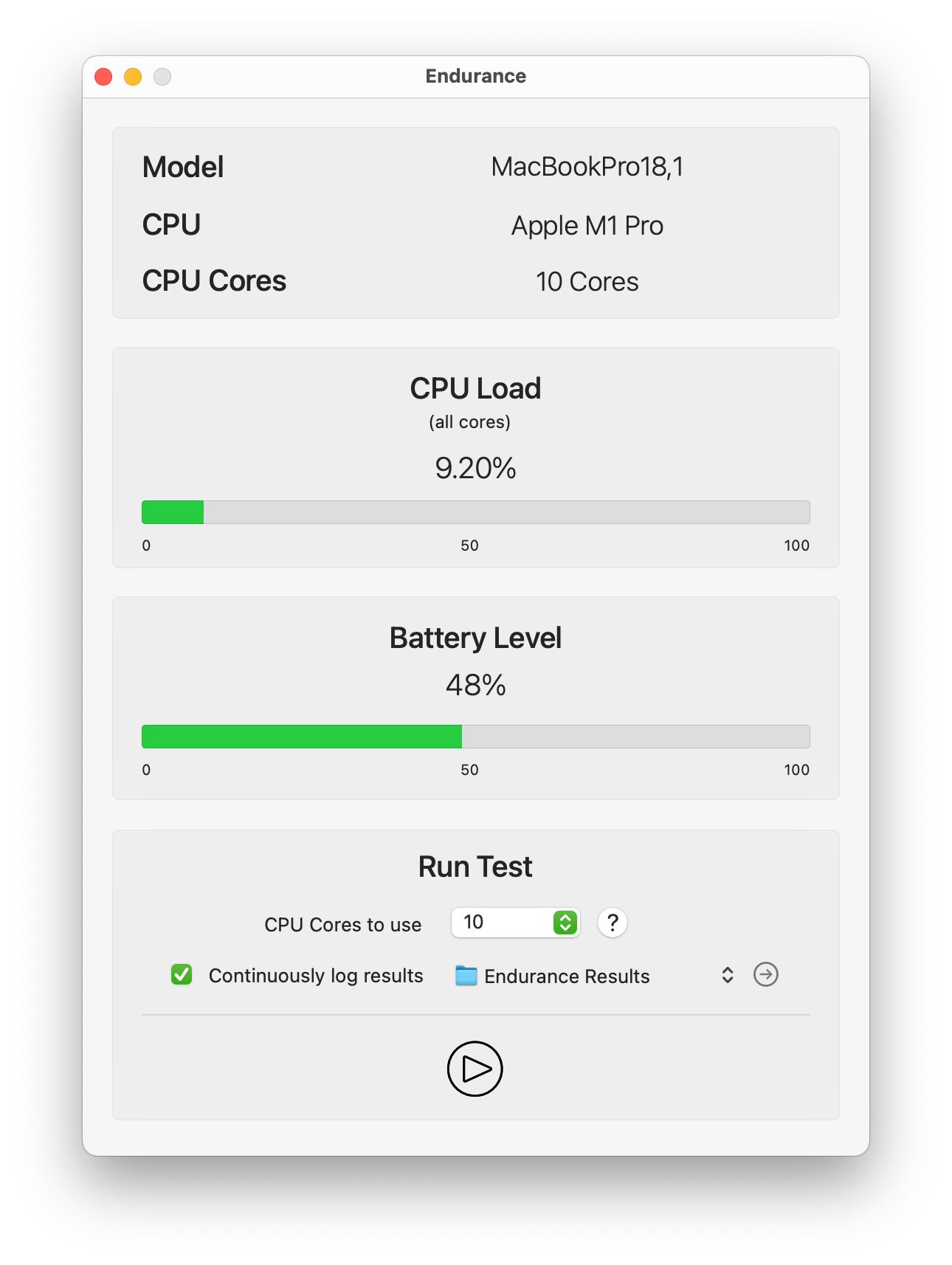 Example of a CPU stress test interface similar to MicroQIT’s tool. Source: Tunabelly Software
What is CPU Stress Testing?
CPU stress testing involves running intensive computations to maximize your processor’s workload, simulating real-world heavy usage scenarios. This helps identify potential issues like instability, overheating, or performance bottlenecks.
Why CPU Stress Testing Matters
- System Stability Validation: Detect crashes or errors in new builds or overclocked setups.
- Thermal Performance Analysis: Check if your cooling system can handle sustained loads without throttling.
- Performance Benchmarking: Compare your CPU’s capabilities before and after upgrades.
- Overclocking Validation: Ensure higher clock speeds are stable under stress.
By regularly stress testing your CPU, you can prevent hardware failures and optimize for better efficiency.
Introducing MicroQIT’s CPU Stress Test Tool
MicroQIT’s CPU Stress Test is a cutting-edge, browser-based tool that leverages Web Workers for true multi-threaded testing. It automatically detects your CPU cores (up to 16) and provides real-time metrics like operations per second, performance scores, and active workers.
Unlike traditional software like Prime95 or AIDA64, this tool runs entirely in your browser, making it accessible on Windows, macOS, Linux, and even mobile devices. No installation required – just visit the page and start testing!
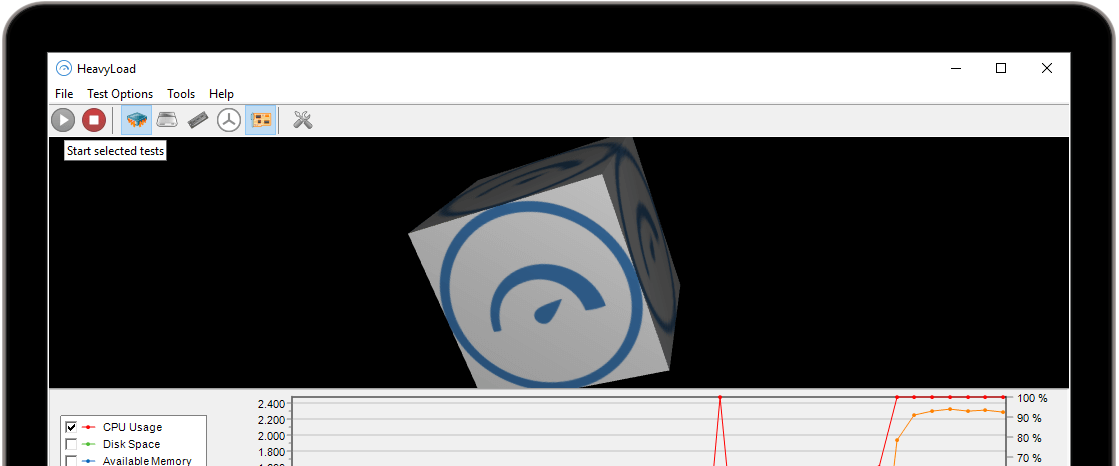 Illustration of a stress testing dashboard, highlighting real-time monitoring features.
Key Features of MicroQIT’s CPU Stress Test
MicroQIT’s tool is packed with features designed for both novices and experts:
- Multi-Core Support: Auto-detects and utilizes up to 16 cores for parallel execution.
- Multiple Test Types: Choose from Prime Numbers (integer focus), Pi Calculation (floating-point), Matrix Operations (memory bandwidth), or Fibonacci Sequence (recursive computations).
- Real-Time Monitoring: Updates every 250ms with detailed metrics.
- Flexible Configuration: Set core count, test duration (including infinite), and type.
- Safe and Secure: Sandboxed JavaScript environment with no data collection or server interactions.
These features make it ideal for quick checks or in-depth analysis.
CPU Test Types Comparison
Here’s a quick comparison of the available test types to help you choose the right one:
| Test Type | Computation Focus | Best For Testing |
|---|---|---|
| Prime Numbers | Integer arithmetic & division | CPU integer processing units and ALU performance |
| Pi Calculation | Floating-point math | FPU performance and mathematical computation units |
| Matrix Operations | Memory access patterns | Cache hierarchy, memory bandwidth, and SIMD capabilities |
| Fibonacci Sequence | Recursive calculations | Branch prediction, instruction pipeline, and loop optimization |
Select based on what aspect of your CPU you want to stress the most.
How to Use the MicroQIT CPU Stress Test
Getting started is straightforward. Follow these steps:
- Visit the Tool: Head over to https://microqit.com/cpu-stress-test.
- Configure Settings:
- Choose your test type from the dropdown.
- Adjust the number of workers (cores) using the slider.
- Set the duration in seconds (use 0 for unlimited).
- Start the Test: Click “Start Test” and monitor the real-time results.
- Analyze Results: Look at performance scores, ops/sec, and duration.
- Stop and Review: Halt the test manually or let it complete.
Best Practices:
- Close other apps for accurate results.
- Monitor temperatures with tools like HWMonitor.
- Run short tests first to warm up your system.
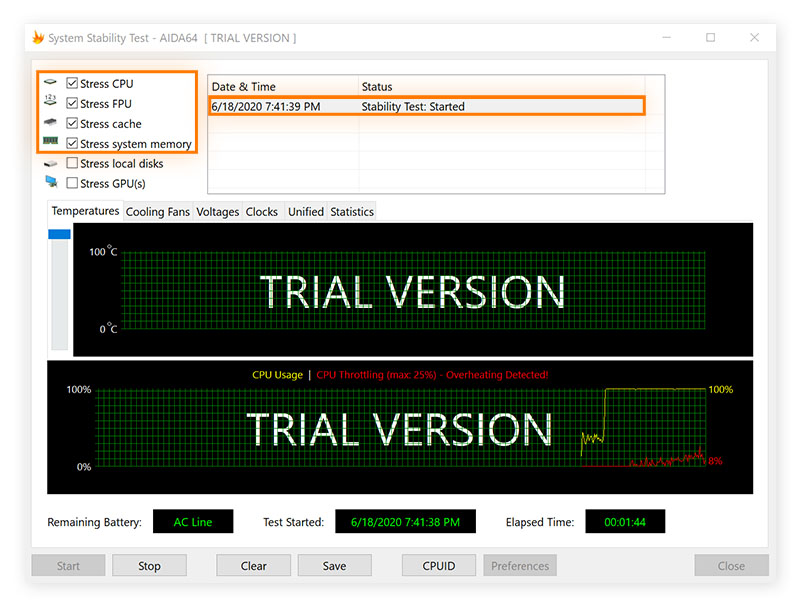 Real-time CPU usage and process management during a stress test.
Benefits of Using MicroQIT’s Tool
- Instant Accessibility: No downloads – test anytime, anywhere.
- Cross-Platform Compatibility: Works on desktops, laptops, and mobiles.
- Comprehensive Insights: Target specific CPU subsystems for detailed analysis.
- Free and Private: Completely free with zero privacy risks.
- Versatile Use Cases: From validating new PCs to monitoring degradation over time.
Compared to native apps, it’s safer and more convenient for quick benchmarks.
Common Use Cases for CPU Stress Testing
- New PC Build Validation: Ensure stability post-assembly.
- Laptop Performance Comparison: Test thermal limits on portable devices.
- Thermal Paste Verification: Check cooling efficiency after replacements.
- Browser Benchmarking: Evaluate JavaScript performance across browsers.
- Overclocking and Tuning: Push limits safely.
 Managing programs during a CPU stress test for optimal results.
Frequently Asked Questions
Is the MicroQIT CPU Stress Test safe?
Yes, it runs in a sandboxed browser environment and doesn’t override hardware protections.
Can I use it on mobile?
Absolutely, though mobiles may throttle quickly due to power constraints.
How does it compare to Cinebench or Geekbench?
It’s great for quick, browser-based tests but less intensive than dedicated apps for absolute benchmarks.
Conclusion: Boost Your CPU Performance Today
If you’re serious about hardware optimization, MicroQIT’s CPU Stress Test is a must-try. It’s free, easy, and powerful – perfect for boosting your system’s reliability and performance. Head over now and give your CPU the workout it deserves!
For more tech tips and tools, subscribe to our blog and stay updated. What are your experiences with CPU stress testing? Share in the comments below!